Braintree Ultimate for Webasyst Shop-Script: setup and user guide
Install the plugin, connect your Braintree account, test in Sandbox, go live, and handle refunds, holds, saved cards, wallets, currencies and disputes from Shop-Script.
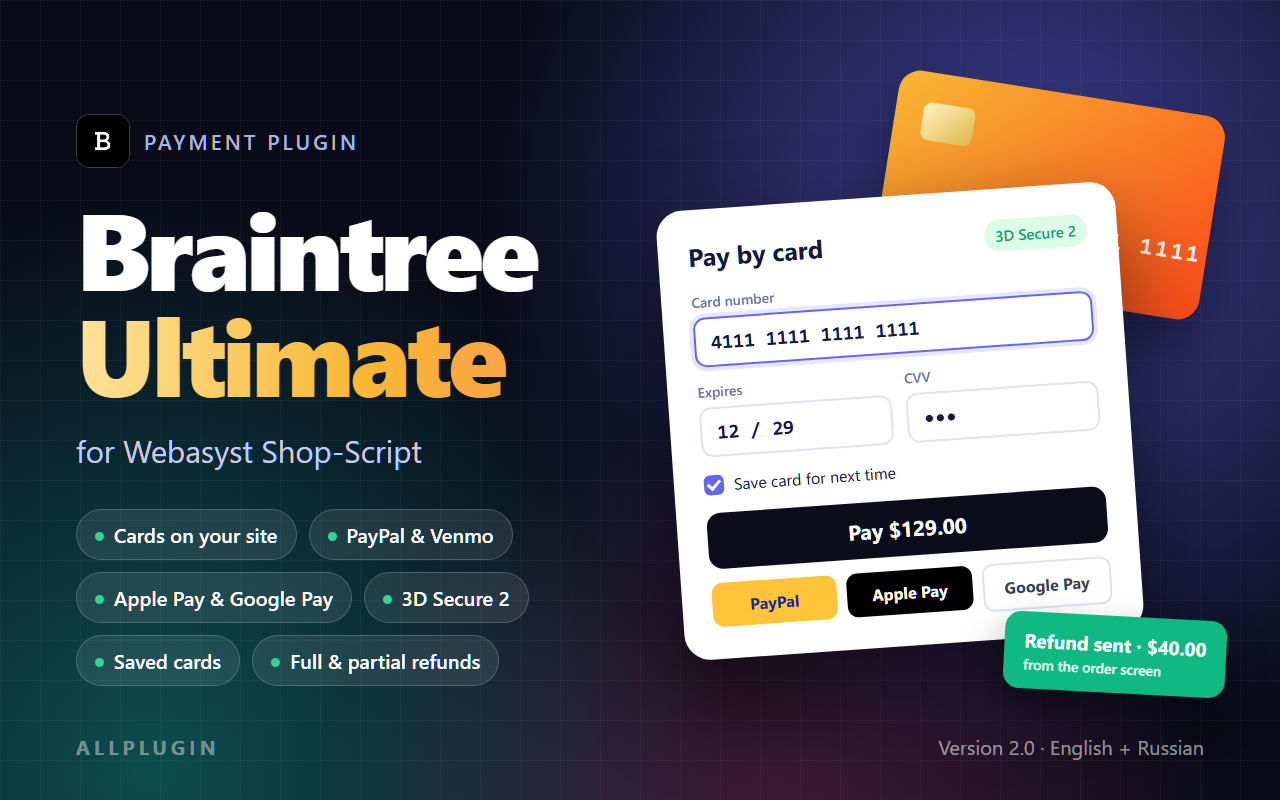
This guide covers Braintree Ultimate, our Braintree payment plugin for Webasyst Shop-Script, version 2.0 from the first install to day-to-day work: connecting your Braintree account, testing in Sandbox, switching to Live, refunding, and fixing the problems people run into most often. It is one of our Shop-Script payment plugins.
Before you start
- Webasyst Framework 3 or newer with Shop-Script 10 or newer.
- PHP 7.4 to 8.5 with the cURL extension.
- HTTPS on your storefront. Braintree's card form and the wallet buttons need a secure page.
- A Braintree account. A sandbox account is free and is all you need for testing. For real payments you need an approved production account.
Install the plugin
From the Webasyst Store
Open the Installer app in your Webasyst backend, find Braintree Ultimate among the payment plugins and install it.
From an archive
Unpack the archive on your server so that the plugin ends up in wa-plugins/payment/braintree/. The archive already contains the braintree folder, so unpack it into wa-plugins/payment/.
Add it as a payment option
- In Shop-Script open Settings → Payment.
- Choose Add payment option and pick Braintree.
- Give it the name your customers will see, for example "Credit or debit card".
Get your Braintree API keys
- Sign in to the Braintree Control Panel. Sandbox and production have separate control panels and separate keys.
- Click the gear icon and open Settings → API → Keys.
- Copy the Merchant ID, the Public key and the Private key.
Connect and check the connection
- Leave Mode on Sandbox (test payments).
- Paste the Merchant ID, Public key and Private key of your sandbox account.
- Press Save.
After saving, a status box appears at the top of the settings. When the keys work it is green and reads Connected to Braintree, followed by the mode, your account name, the merchant accounts Braintree reported and the currencies the plugin will be offered for.
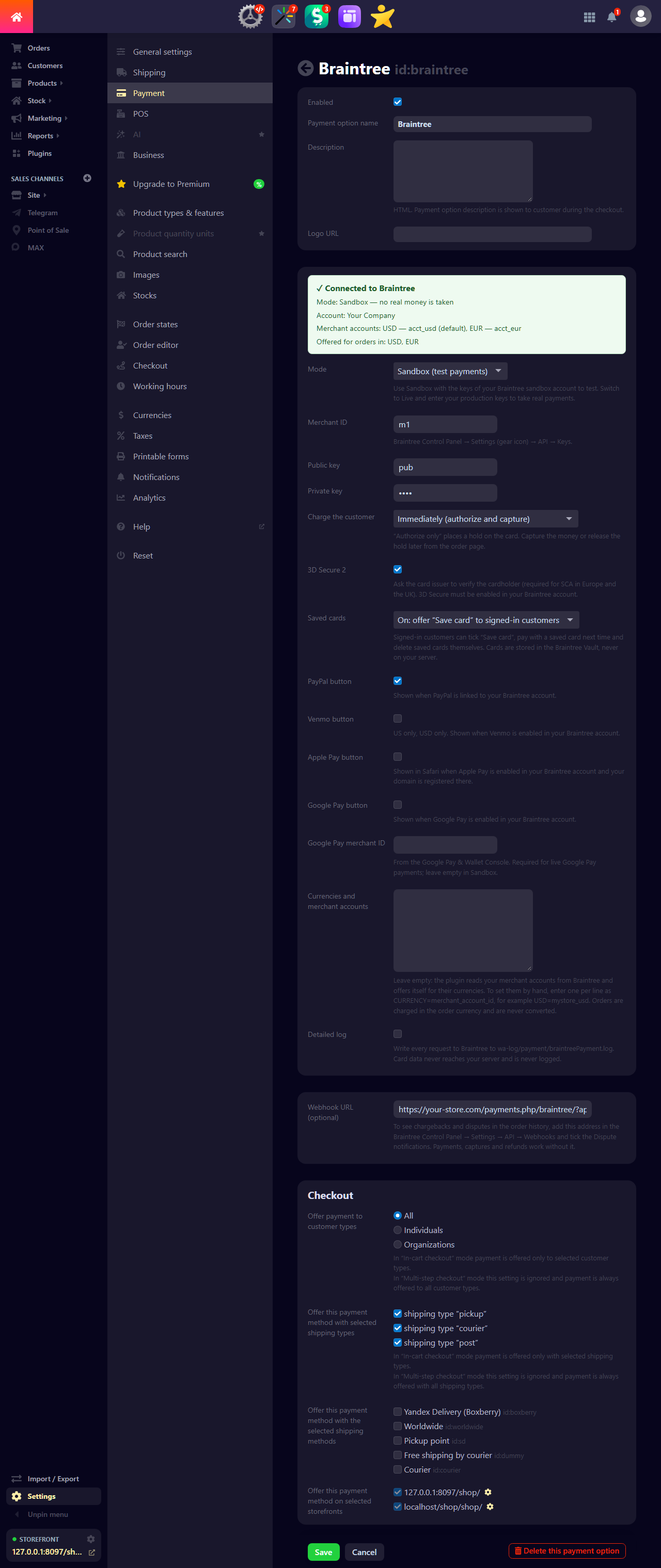
If the box is red, see Troubleshooting below.
Settings reference
| Setting | What it does |
|---|---|
| Mode | Sandbox takes no real money and uses sandbox keys. Live takes real payments and uses production keys. |
| Merchant ID, Public key, Private key | The credentials from Settings → API → Keys in the Braintree Control Panel. |
| Charge the customer | Immediately takes the money at checkout. Authorize only places a hold that you capture or release from the order page. |
| 3D Secure 2 | Asks the card issuer to verify the cardholder. On by default. 3D Secure must also be enabled in your Braintree account. |
| Saved cards | Lets signed-in customers tick "Save card" and reuse it next time. Cards are kept in the Braintree Vault, never on your server. |
| PayPal button | Shown when PayPal is linked to your Braintree account. On by default. |
| Venmo button | United States and USD orders only. Shown when Venmo is enabled in your Braintree account. |
| Apple Pay button | Shown in Safari when Apple Pay is enabled in your Braintree account and your domain is registered there. |
| Google Pay button | Shown when Google Pay is enabled in your Braintree account. |
| Google Pay merchant ID | From the Google Pay & Wallet Console. Needed for live Google Pay payments. Leave it empty in Sandbox. |
| Currencies and merchant accounts | Leave empty to let the plugin read them from Braintree. See Currencies and merchant accounts. |
| Detailed log | Writes every request to Braintree into wa-log/payment/braintreePayment.log. Card data is never logged, because it never reaches your server. |
| Webhook URL (optional) | The address to give Braintree if you want disputes to appear in the order history. |
Make a test payment
- Place an order in your storefront and choose the Braintree payment option.
- On the payment step you see the card form with a yellow test-mode note.
- Enter card 4111 1111 1111 1111, any future expiry date and any CVV, then press Pay.
- You land on your store's thank-you page and the order is marked as paid.
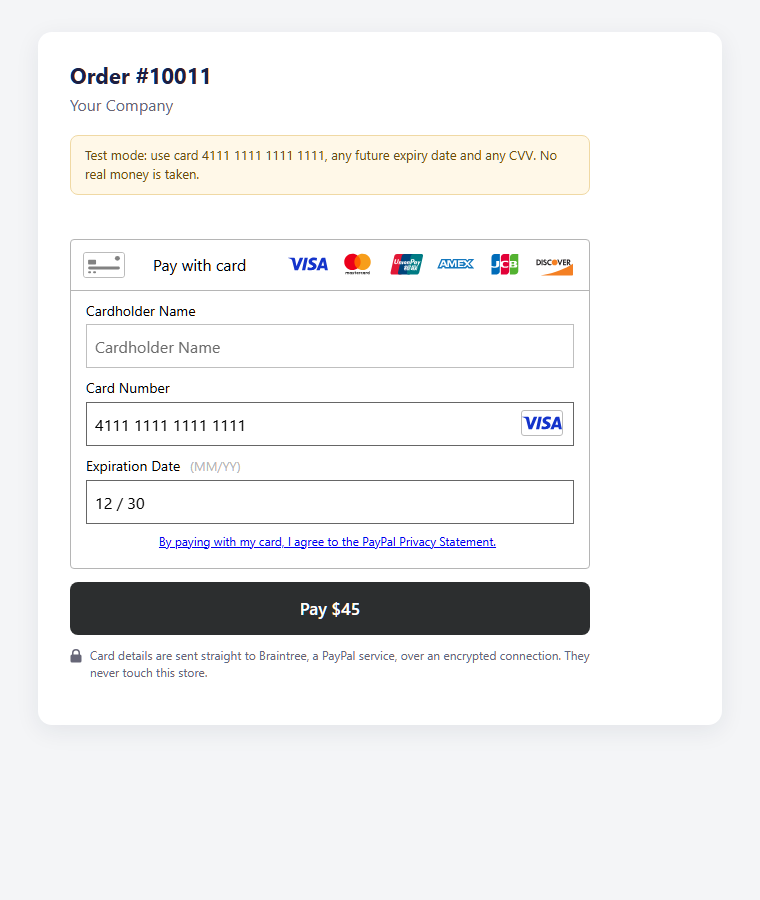
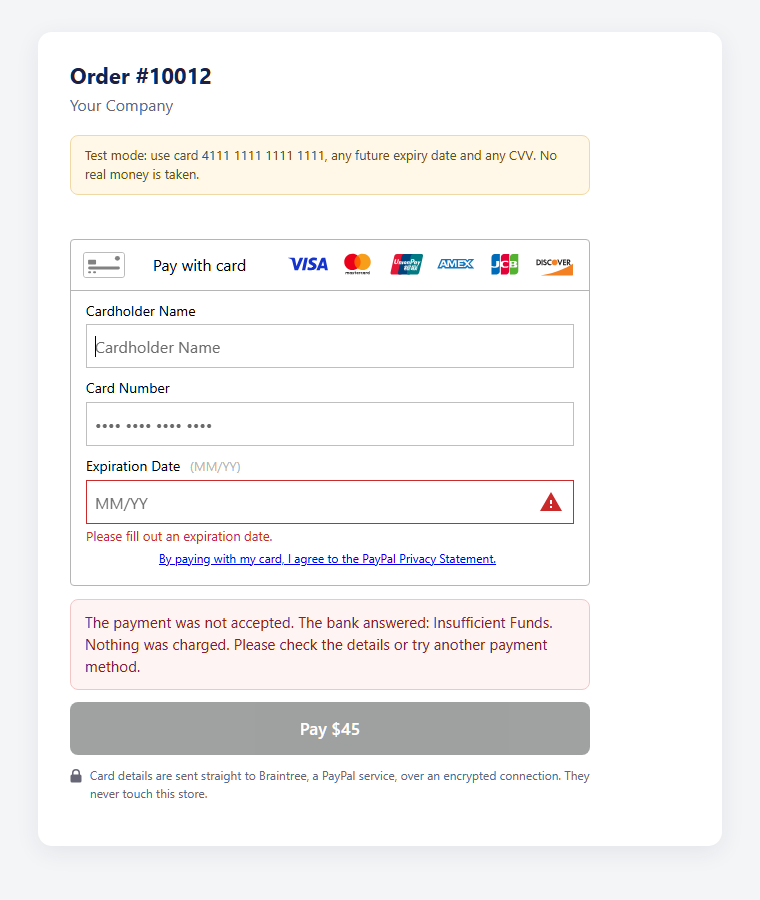
To see what a customer sees when the bank says no, use Braintree's sandbox decline amounts: an order total between 2000.00 and 2999.99 is declined by the sandbox. The form then shows the reason and tells the customer that nothing was charged.
Before going live, also try one refund from the order page and, if you plan to use "Authorize only", one capture.
Go live
- Sign in to your production Braintree Control Panel and copy its Merchant ID, Public key and Private key. They are different from the sandbox ones.
- In the plugin settings switch Mode to Live (real payments) and paste the production keys.
- Press Save and check that the green box now reads Mode: Live and lists the currencies you expect.
- Place one small real order and refund it.
Refunds
Open the order in Shop-Script and use the Refund action. You do not need to sign in to the Braintree Control Panel.
- Full refund. If Braintree has not settled the payment yet, the plugin voids it, so the charge simply disappears from the customer's statement. If it has settled, the money is refunded.
- Partial refund. You can refund part of the payment, more than once, until the whole amount has been returned.
- Partial refund refused? A payment can only be partly refunded after Braintree settles it, usually within 24 hours. Until then the plugin tells you so and only a full refund is possible.
Authorize now, capture later
Set Charge the customer to Authorize only if you want to hold the money at checkout and take it later, for example when the goods ship. The order then arrives as authorized, and the order page offers actions to capture the payment or to cancel it, which releases the hold.
A hold does not last forever. Card issuers drop authorizations after a number of days, so capture soon after the order is ready.
Saved cards
With Saved cards switched on, a customer who is signed in to your store sees a "Save card" tick box in the form. Next time their saved card is offered first, and they can remove saved cards from the same form. Guests are never offered the option.
For returning customers who buy the same things again, the Re-Order plugin for Shop-Script adds a button that puts a past order back in the cart.
3D Secure 2
With 3D Secure on, the card issuer may ask the customer to confirm the payment in their banking app or with a code. This is what Strong Customer Authentication requires in Europe and the UK. When the issuer cannot verify the cardholder, the plugin refuses the payment instead of accepting it without protection. A payment that passed is marked "3D Secure" in the order's payment details.
If 3D Secure is not enabled in your Braintree account, switch the setting off or ask Braintree to enable it.
PayPal, Venmo, Apple Pay and Google Pay
Each wallet has its own tick box, and each one appears in the form only when it is also enabled on the Braintree side:
- PayPal: link your PayPal account in the Braintree Control Panel.
- Venmo: United States merchants and USD orders only.
- Apple Pay: enable it in Braintree and register your store's domain there. The button shows in Safari on devices with Apple Pay.
- Google Pay: enable it in Braintree. For live payments also enter your Google Pay merchant ID in the plugin settings.
If you want PayPal on its own, without a Braintree account or a card form, use the PayPal Checkout plugin for Shop-Script instead.
Currencies and merchant accounts
Braintree charges in the currency of a merchant account. The plugin never converts money: an order in EUR is charged through a EUR merchant account, or the payment option is not offered for that order.
Leave the Currencies and merchant accounts field empty and the plugin reads your merchant accounts from Braintree by itself. The green box lists what it found.
To set them by hand, enter one per line as CURRENCY=merchant_account_id:
USD=mystore_usd
EUR=mystore_eur
The list read from Braintree is remembered for a few hours. After adding a merchant account in Braintree, open the plugin settings and press Save to read it again straight away.
Disputes and chargebacks
This step is optional. Payments, captures and refunds work without it.
- Copy the Webhook URL shown at the bottom of the plugin settings.
- In the Braintree Control Panel open Settings → API → Webhooks and create a webhook with that address.
- Tick the Dispute notifications and save.
From then on an opened, won, lost, accepted or expired dispute is written into the history of the order it belongs to, with the amount and the reason.
Updating from version 1.x
Install version 2 over the old one. Your Merchant ID and keys are kept, and the old bundled SDK is removed automatically. The CSE Key setting of version 1 is no longer used. Open the settings once, press Save and check the green box.
Troubleshooting
| What you see | What to do |
|---|---|
| Red box: "Braintree rejected the keys" | The keys do not belong to the selected mode. Sandbox keys work only in Sandbox, production keys only in Live. Copy them again without spaces. |
| Red box: "Connection check failed" | Your server could not reach Braintree. Check that outgoing HTTPS is allowed and that PHP has cURL. |
| "This payment method is not available for orders in …" | You have no Braintree merchant account in the order's currency. Add one in Braintree, or list it in Currencies and merchant accounts. |
| The payment option is missing at checkout | Check that it is enabled, that the order currency is among those in the green box, and the customer, shipping and storefront restrictions at the bottom of the settings. |
| "The payment form could not be loaded" | The page could not load Braintree's script from js.braintreegateway.com. Check the page is on HTTPS and that a content security policy or ad blocker is not stopping it. |
| A wallet button is not shown | The wallet must be ticked in the plugin and enabled in your Braintree account. Apple Pay shows only in Safari; Venmo only for USD. |
| "The card could not be verified" | 3D Secure did not complete. If it happens for every card, 3D Secure is probably not enabled in your Braintree account. |
| "The order has changed. The page will reload…" | The order total changed after the form was shown. The page reloads so the customer pays the current total. |
| A partial refund is refused | The payment has not settled yet. Refund in full now, or wait about a day. |
Still stuck? Switch on Detailed log, repeat the payment and look at wa-log/payment/braintreePayment.log. Send us the relevant lines in a support ticket and we will help.
Other payment gateways for Shop-Script
Braintree does not accept merchants from every country. If it does not cover yours, the same order-page experience is available through our Stripe payment plugin for Shop-Script, the Mollie payment plugin for European stores, and the Tap Payments plugin for the Middle East.
Need something none of them does? We also take on custom Webasyst plugin development.
Do not have the plugin yet? Get Braintree Ultimate for Shop-Script here.
 mentioned in this postBraintree Ultimate for Webasyst Shop-ScriptAccept cards directly on your Shop-Script order page with Braintree — plus PayPal, Apple Pay and Google Pay, 3D Secure 2, saved cards and refunds from the order screen.
$19.99
mentioned in this postBraintree Ultimate for Webasyst Shop-ScriptAccept cards directly on your Shop-Script order page with Braintree — plus PayPal, Apple Pay and Google Pay, 3D Secure 2, saved cards and refunds from the order screen.
$19.99